100 royalty-free WAV files ready for the Edit page and Fairlight. Whooshes, cinematic impacts, risers, UI sounds and more. No signup. Works in the free version. No copyright strikes.
Grab the free 100-sound pack from VideoEditingSFX. It downloads as a ZIP file organised into 8 category folders: Whooshes, Impacts, Risers, UI and more. Unzip it anywhere on your drive.
No signup needed
Step 02
Import into the Media Pool
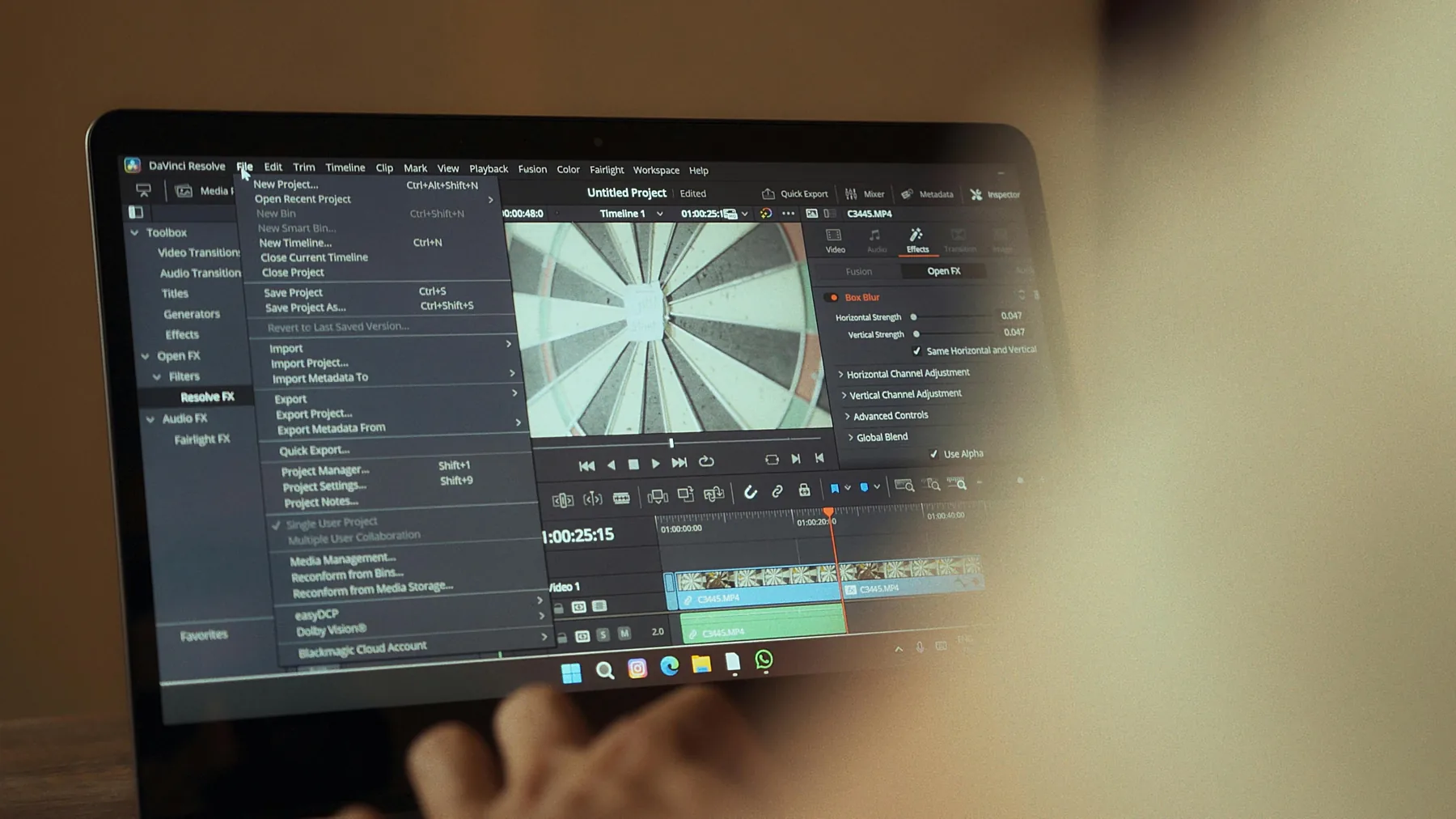
Open your DaVinci Resolve project and go to File > Import Media, then select the SFX folder. All sounds land in your Media Pool and stay available across the Edit, Cut, and Fairlight pages.
You can also drag the folder straight into the Media Pool
Step 03
Place on your timeline
On the Edit page, drag a sound from the Media Pool onto a dedicated audio track. Position it at the exact frame you want it to land — a cut, a title card, an impact moment. Right-click the track header and rename it "SFX" to keep things organised.
Keep SFX on a separate track from dialogue and music
Step 04
Mix in Fairlight
Switch to the Fairlight page for precise level control. Use the channel fader to pull your SFX track down to around -12 to -18 dB so it sits cleanly under dialogue and music without taking over the mix.
Use Fairlight's Bus to group and control all SFX at once
DaVinci Resolve Edit page: drag sounds from the Media Pool onto a dedicated SFX track.
What's included
8 categories, 100 sounds
Every sound type a serious editor reaches for — nothing bloated.
💨
Whoosh & Transitions
26 sounds
Air swooshes and swipes for cuts and transitions. Essential for any fast-paced edit.
🖱️
UI
19 sounds
Clicks, chimes and notification tones. Ideal for title animations and on-screen text.
📷
Camera FX
12 sounds
Shutter clicks and flash sounds. Adds realism to photo sequences and B-roll moments.
💥
Impacts
11 sounds
Punchy hits for emphasis and jump cuts. Pairs perfectly with DaVinci's colour-graded visuals.
⏪
Reverse FX
11 sounds
Reversed whooshes and rewind sounds. Great for flashback moments and rewind effects.
📈
Buildups
9 sounds
Tension builders for reveals and climax moments. Especially effective on cinematic footage.
🎬
Cinematic
7 sounds
Deep cinematic hits and reveal stingers. Built for the big-moment beats in narrative and documentary work.
🚀
Risers
5 sounds
Sweeping builds for intros and segment transitions. Works well under colour-grade cuts.
Fairlight tips
Get more from SFX in DaVinci Resolve
Tip 01
Use a dedicated SFX bus in Fairlight
In the Fairlight page, route all your SFX tracks to a single bus. This lets you control the volume of every sound effect with one fader, making it fast to bring the entire SFX layer up or down without touching individual clips.
Tip 02
Match SFX to colour moments
DaVinci is built around colour grading, so use that to your advantage. When you make a bold colour cut or a grade change, add an impact SFX underneath it. The combination of a visual and audio hit makes the moment register much harder on the viewer.
Tip 03
Use Audio Track Layers for variations
DaVinci Resolve supports Audio Track Layers, which let you stack multiple audio clips on the same track without creating clutter. Use this to try different SFX variations on the same hit point and toggle between them without moving anything.
FAQ
Common questions
Yes. All 100 sound effects are completely free to download and use in DaVinci Resolve. No signup, no credit card, no hidden fees.
Yes. All sounds are standard WAV and MP3 files that import and play back perfectly in DaVinci Resolve Free. You do not need DaVinci Resolve Studio to use them.
Import the SFX folder into your Media Pool via File > Import Media. Then drag sounds onto an audio track in the Edit page timeline, or switch to Fairlight for precise mixing and level control. See the step-by-step guide above for full detail.
For basic placement, the Edit page is fine. For control over levels, EQ, and mixing multiple audio tracks, the Fairlight page is better. It gives you a full mixing console with buses, compression, and per-track EQ.
No. These are original copyright-free sound effects. They will not trigger Content ID claims or copyright strikes on YouTube, TikTok, Instagram, or any other platform.
Ready for your DaVinci Resolve project. Download free in seconds.
100 sounds. WAV & MP3. Works in the free version. No catches.