Sound effects are the difference between a video that feels homemade and one that feels polished. Here is everything you need to know to use them well, from choosing the right sound to mixing it into your final edit.
Four steps that work in Premiere Pro, DaVinci Resolve, CapCut, After Effects, and beyond.
Step 01
Get your sounds
Before you can use SFX, you need a library. Download the free 100-sound pack from VideoEditingSFX. It comes as a ZIP with 8 category folders: Whooshes, Impacts, UI, Risers, Camera FX, Reverse FX, Buildups and Cinematic. Unzip it and keep it in a permanent spot on your drive so your editor can always find it.
No signup, no credit card needed
Step 02
Import into your editor
Every editing app handles import slightly differently, but the principle is the same. In Premiere Pro or After Effects use File > Import. In DaVinci Resolve use File > Import Media. In CapCut tap the audio tab and import from your files. Once imported, your sounds appear in your project or media panel, ready to drag into any timeline.
Import the whole folder once, reuse sounds across projects
Step 03
Place sounds on a dedicated track
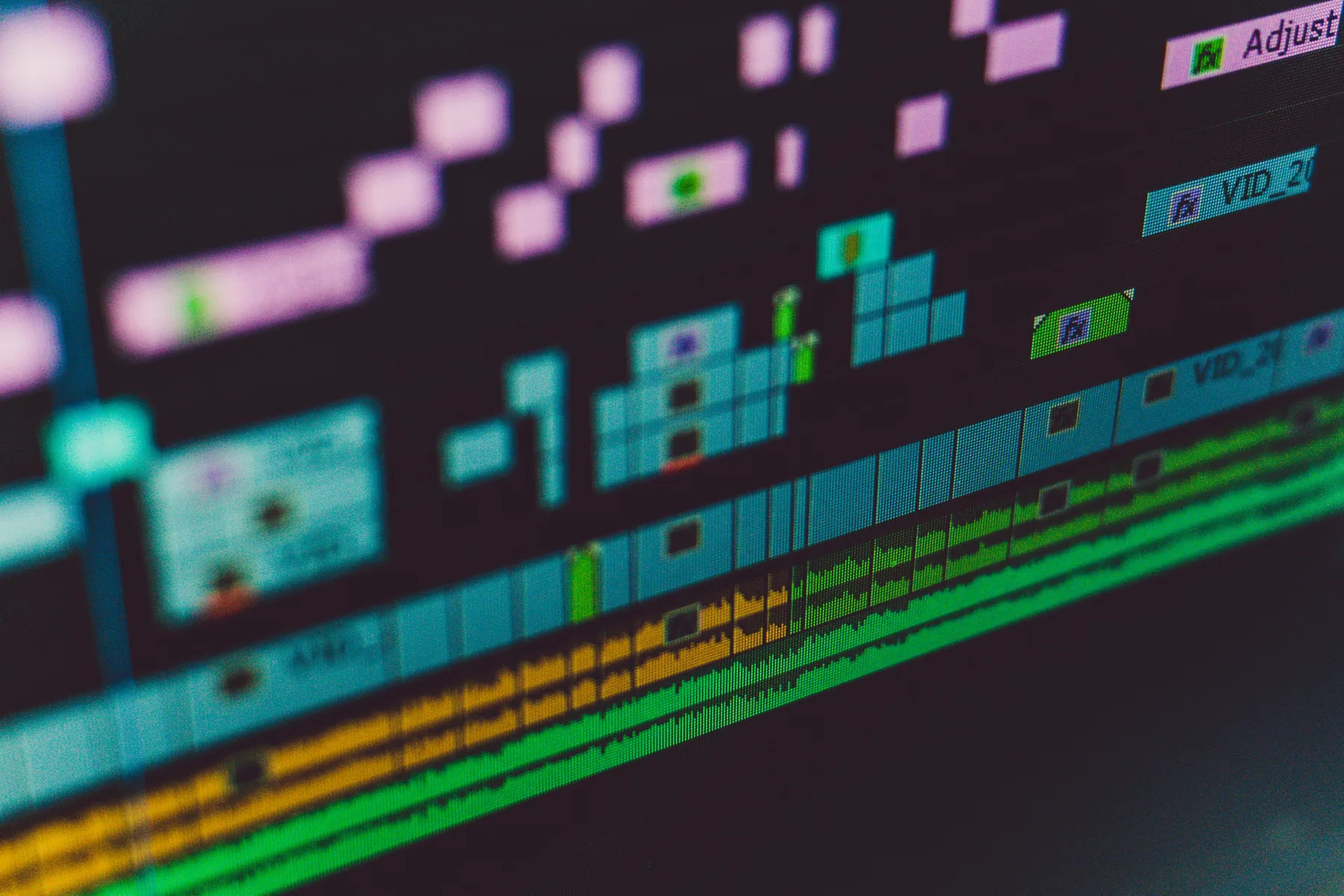
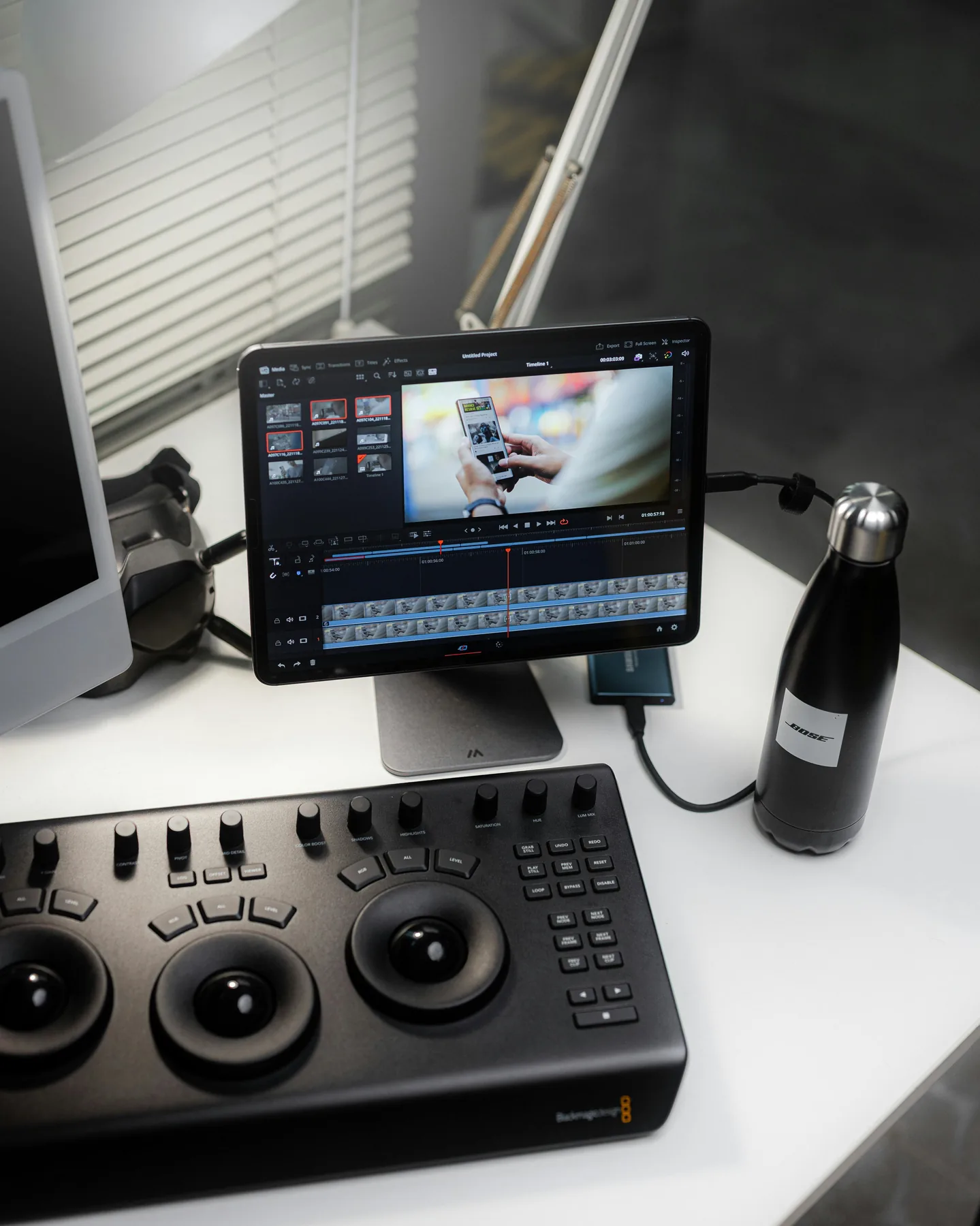
Create a new audio track and label it "SFX". Keeping sound effects on their own track, separate from dialogue, music and ambient audio, is one of the most important habits in professional editing. It means you can solo, mute or adjust the entire SFX layer instantly without touching anything else. Drag each sound so its start point snaps to the exact frame you want it to hit.
Never mix SFX onto the same track as dialogue
Step 04
Set your levels and listen back
A sound effect at full volume will almost always be too loud. As a starting point, bring SFX down to around -12 to -18 dB so they sit underneath your main audio without competing with it. Then listen back to the whole sequence and make small adjustments. The goal is for SFX to be felt as much as heard.
Always check your mix on headphones and speakers
A dedicated SFX track (bottom) sits beneath the video and dialogue tracks, ready to solo or mute at any time.
Know your sounds
8 types of SFX and when to use them
Not all sound effects are interchangeable. Each type has a specific job in the edit.
💨
Whoosh & Transitions
Use for: cuts and wipes
Air swooshes that cover the moment between two clips. They make hard cuts feel intentional and energetic rather than abrupt.
🖱️
UI Sounds
Use for: text and titles
Clicks, chimes and notification tones that sync to on-screen text appearing, buttons activating and graphic elements popping in.
📷
Camera FX
Use for: photo sequences
Shutter clicks and flash sounds that add authenticity to photo montages, B-roll moments and documentary-style cuts.
💥
Impacts
Use for: emphasis cuts
Punchy hits for jump cuts, hard transitions and any moment that needs a sharp accent. Drop one on every key edit point.
⏪
Reverse FX
Use for: flashbacks
Reversed swooshes and rewind sounds that signal a time jump, flashback or rewind effect before the visual cue even lands.
📈
Buildups
Use for: tension and reveals
Rising tension sounds that ramp up energy before a payoff moment. Start them a beat before the reveal so the peak lands on frame.
🎬
Cinematic
Use for: big reveals
Deep cinematic hits and reveal stingers for title cards, dramatic cuts and any scene that needs weight and power behind it.
🚀
Risers
Use for: intros and segments
Sweeping builds for intro sequences and segment breaks. They prime the viewer for what is coming and keep pacing tight.
Level up
Three habits that separate good editors from great ones
Tip 01
Less is more
The most common beginner mistake is using too many sound effects. When everything has a sound, nothing stands out and the edit becomes exhausting to watch. Start by placing SFX only on your three or four most important moments. Listen back. Add more only if something genuinely feels empty. Restraint is what makes the sounds you do use feel impactful.
Tip 02
Layer for depth
Professional sound design rarely uses a single sound in isolation. A title reveal might have a whoosh on the cut, a UI chime as the text lands, and a subtle buildup leading into it. None of those sounds would work as well alone. Try stacking two or three sounds at slightly different levels and see how much more texture the moment has. Keep each layer quiet enough that the combination doesn't peak.
Tip 03
Match the energy of the visual
A fast, punchy edit needs fast, punchy SFX. A slow, cinematic sequence needs subtler, deeper sounds. The biggest disconnect beginners create is using high-energy whooshes over slow lifestyle footage, or soft UI sounds under aggressive action cuts. Before choosing a sound, ask what the visual is actually doing and match the energy of your SFX to that. The edit will feel cohesive without the viewer knowing why.
FAQ
Common questions
Import your SFX files into your editing software, then drag them onto a dedicated audio track in your timeline. Position the clip so its start point aligns with the visual moment you want it to hit. Every major editor handles import slightly differently: Premiere Pro and After Effects use File > Import, DaVinci Resolve uses File > Import Media, and CapCut has an audio import option in the media panel.
Most SFX sit between -12 dB and -18 dB so they support the edit without overpowering dialogue or music. Impact sounds can go louder (around -6 dB) for dramatic moments, while subtle UI or transition sounds often work best at -20 dB or lower. The key is to listen back and adjust until the sound feels present but not distracting.
VideoEditingSFX offers 100 free royalty-free sound effects across 8 categories including whooshes, cinematic impacts, UI sounds, risers and more. No signup required. Files come as WAV (48kHz / 24-bit) and MP3, safe to use on YouTube, TikTok, Instagram and in commercial projects.
There is no fixed number, but less is almost always more. Start by adding SFX only to your biggest moments: cuts, title reveals, transitions and emotional peaks. Once those feel right, fill in secondary moments where the edit feels empty. Overusing SFX is one of the most common mistakes beginners make — when every moment has a sound, none of them land.
Only if the sounds are not properly licensed. Royalty-free sound effects like those from VideoEditingSFX are original recordings that will not trigger Content ID claims or copyright strikes on YouTube, TikTok, or any other platform. Always check the license of any sound you download from another source before using it in monetised content.
Ready to put this into practice? Start with 100 free sounds.
Download the pack, drop it into your editor, and try the steps above.