100 royalty-free sounds made for fast edits: transitions, impacts, UI clicks and more. Works on CapCut mobile and desktop. No signup. Safe for TikTok, Reels and Shorts.
Desktop or phone, up and running in under two minutes.
Step 01
Download the free pack
Grab the free 100-sound pack from VideoEditingSFX. It downloads as a ZIP file sorted into 8 folders: Whooshes, Impacts, Risers, UI sounds and more. On mobile, save it to your Files app or Google Drive so CapCut can reach it.
No signup needed
Step 02
Import into CapCut
Desktop: Unzip and drag audio files straight into CapCut's media panel. Mobile: In your project, tap Add Audio → Extracted, then pick the file from your Files app or cloud storage.
On iPhone, save to Files app first for easy access
Step 03
Place on your timeline
Drag the clip onto an audio track and scrub to line it up precisely: a cut, a text pop-in, a reveal moment. CapCut snaps audio to your video clips, making it easy to hit the exact frame.
Use CapCut's Beat Sync to lock SFX to your music
Step 04
Trim and set volume
Drag the clip edges to trim any unwanted tail. Tap the clip and use the Volume slider to bring it down, around 60–70% works well for most SFX sitting under music or a voiceover.
Add a fade-out to avoid hard audio cuts
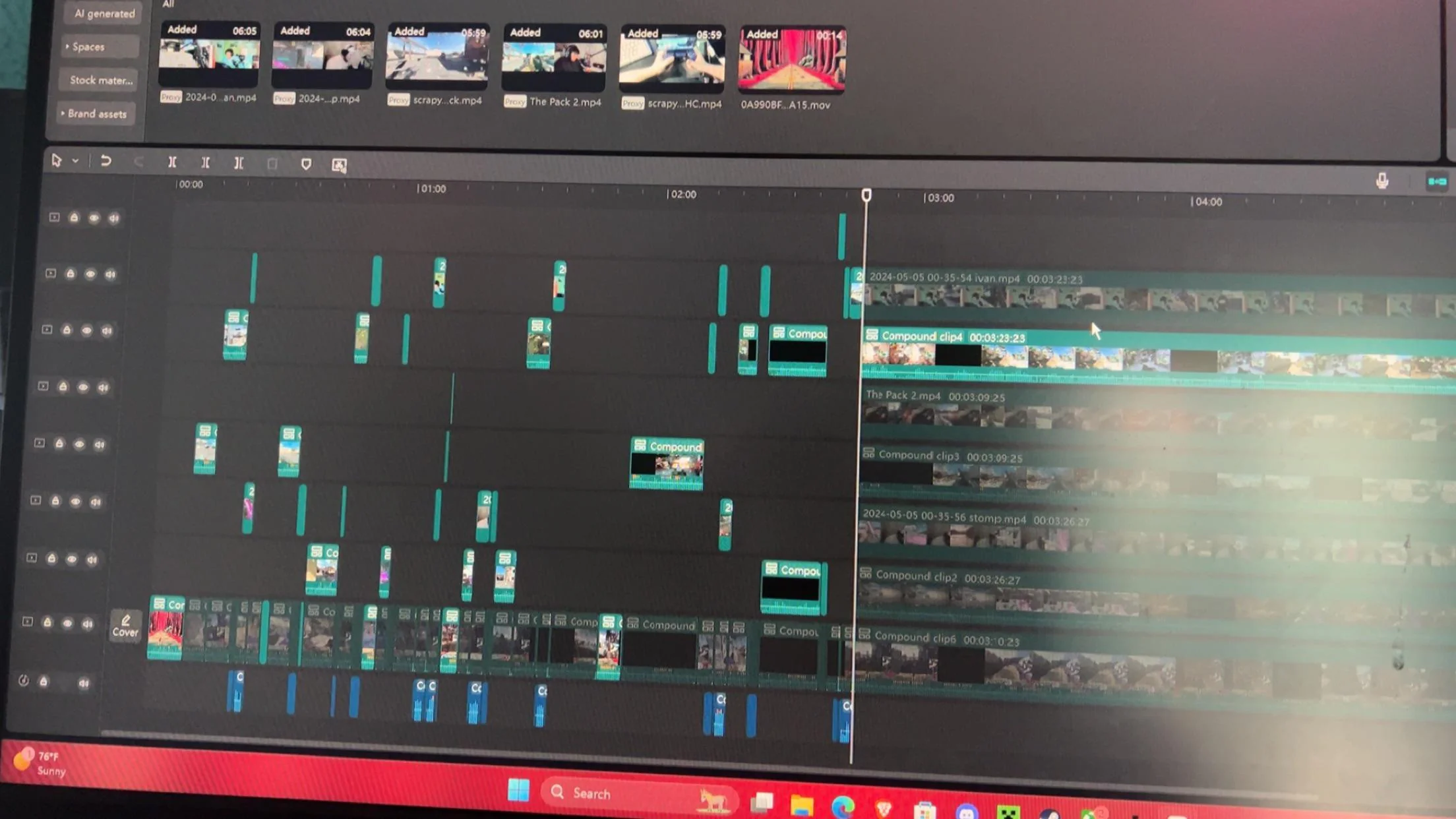
CapCut desktop, audio tracks ready for SFX below the video timeline.
What's included
8 categories, 100 sounds
Every sound type short-form creators actually reach for.
💨
Whoosh & Transitions
26 sounds
Fast swipes and swooshes, perfect for slide transitions and quick cuts in Reels and Shorts.
🖱️
UI
19 sounds
Clicks, chimes and notification tones. Great for text pop-ins and on-screen elements.
📷
Camera FX
12 sounds
Shutter clicks and flash sounds. Adds a polished feel to photo montages and B-roll cuts.
💥
Impacts
11 sounds
Punchy hits and emphasis sounds. Makes dramatic moments and jump cuts land harder.
⏪
Reverse FX
11 sounds
Reversed whooshes and rewinds, a staple for TikTok-style rewind transitions.
📈
Buildups
9 sounds
Tension risers before a reveal or punchline. Keeps viewers hooked through the cut.
🎬
Cinematic
7 sounds
Deep cinematic hits and reveal stingers. Adds weight to dramatic moments, transitions and reveal cuts.
🚀
Risers
5 sounds
Sweeping builds and swells. Ideal for intros, title cards and hype moments.
CapCut tips
Make your edits hit harder
Tip 01
Use Beat Sync for transitions
CapCut's Beat Sync feature automatically detects the beats in your music track. Drop a whoosh or impact SFX right on a beat marker and your transitions will feel locked-in and intentional rather than random.
Tip 02
Trim the tail for snappy cuts
Short-form content moves fast. Don't let SFX ring out too long. Trim the tail of your whooshes and impacts to end right after the peak. Tight, snappy audio makes cuts feel more energetic and keeps the pace up.
Tip 03
Layer UI sounds with text
Every time a text element pops on screen, add a quick UI click or chime underneath it. It takes seconds in CapCut and makes your on-screen text feel animated and polished, a detail that separates good edits from great ones.
FAQ
Common questions
Yes. All 100 sound effects are completely free. No signup, no subscription, no hidden fees. Download the pack and import directly into CapCut on mobile or desktop.
Yes. Download the pack to your phone, then import using Add Audio → Extracted in CapCut. Works on both iPhone and Android. Save the files to your Files app or Google Drive first for easiest access.
No. These are original, copyright-free sound effects. They will not trigger any copyright claims on TikTok, Instagram Reels, YouTube Shorts, or any other platform. Safe to use in monetised content.
Desktop: drag the audio file into CapCut's media panel, then drag it onto your timeline. Mobile: tap Add Audio → Extracted, select the file from your phone storage, then trim and position it on the audio track. See the step-by-step guide above for full detail.
Absolutely. All sounds are royalty-free and cleared for use on TikTok, Instagram Reels, YouTube Shorts, and any other short-form platform. No attribution required.
Ready for your next CapCut edit. Download free in seconds.
100 sounds. Works on mobile and desktop. No catches.